
7 Powerful YouTube Channel Setup Steps for Beginners in 2026
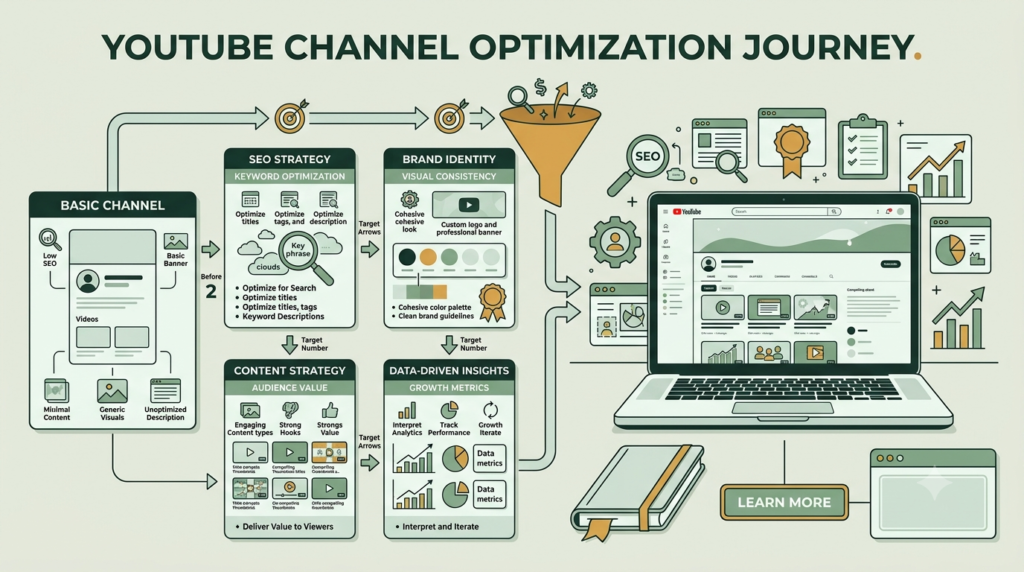
Starting a YouTube channel can feel confusing when you see all the settings, branding options and SEO recommendations. The good news is that YouTube channel setup for beginners becomes much easier when you follow the process in the right order.
Your channel is more than a place to upload videos. It is your digital identity, content hub and foundation for YouTube SEO. A properly structured channel helps viewers understand who you are, what you publish and why they should subscribe.
In this beginner’s guide, you will learn how to create a YouTube channel, build consistent YouTube channel branding, configure important settings and complete basic YouTube channel optimization.
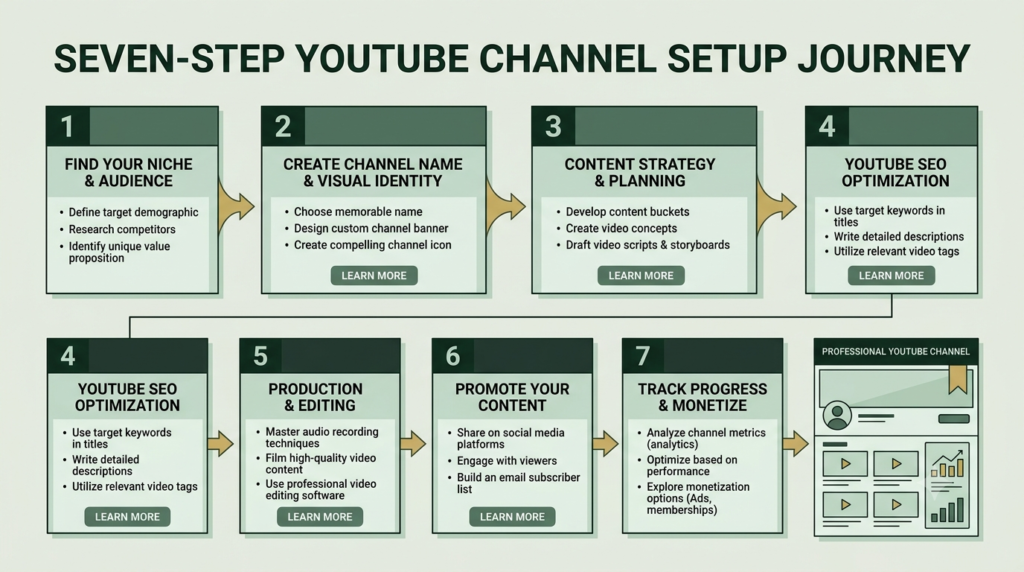
1. Decide Your Channel Topic and Audience
Before clicking the Create button, decide what your channel will help people learn, solve or enjoy.
A clear topic makes your content easier to organize.
For example:
- Beginner digital marketing
- YouTube SEO
- Canva tutorials
- Personal finance education
- Cooking tutorials
- Fitness education
- Business tips
Then define your audience.
Ask:
- Who will watch my videos?
- What problems do they have?
- What questions do they search for?
- What will they learn from my channel?
Why this matters
Your topic becomes the foundation for your video ideas, keywords, playlists, titles and descriptions.
Simple formula: Audience + Problem + Helpful Content = Clear Channel Direction
2. Create a YouTube Channel
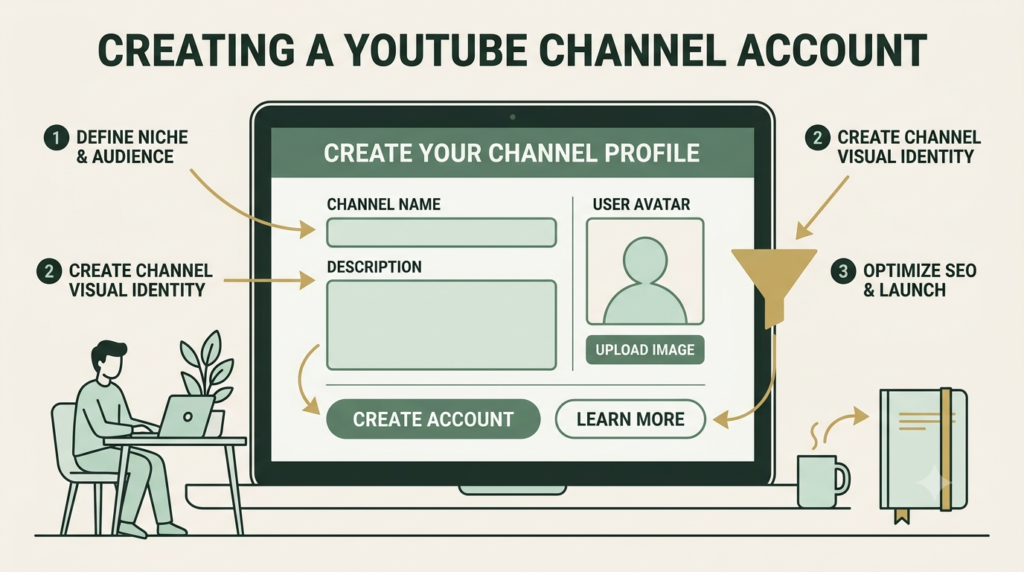
You need a YouTube channel to upload videos, comment publicly and create playlists. YouTube’s current process allows you to create a personal channel or a channel using a different business or brand name.
How to create a YouTube channel
- Sign in to your Google Account.
- Open YouTube.
- Click your profile picture.
- Go to Settings.
- Select Add or manage channel(s).
- Choose Create a channel.
- Add your profile picture.
- Enter your channel name and handle.
- Click Create channel.
For a business, creator brand or agency, think carefully about the name before publishing.
Channel name tips
Keep it:
- Easy to remember
- Easy to spell
- Relevant to your topic
- Consistent with your other platforms
- Flexible enough for future content
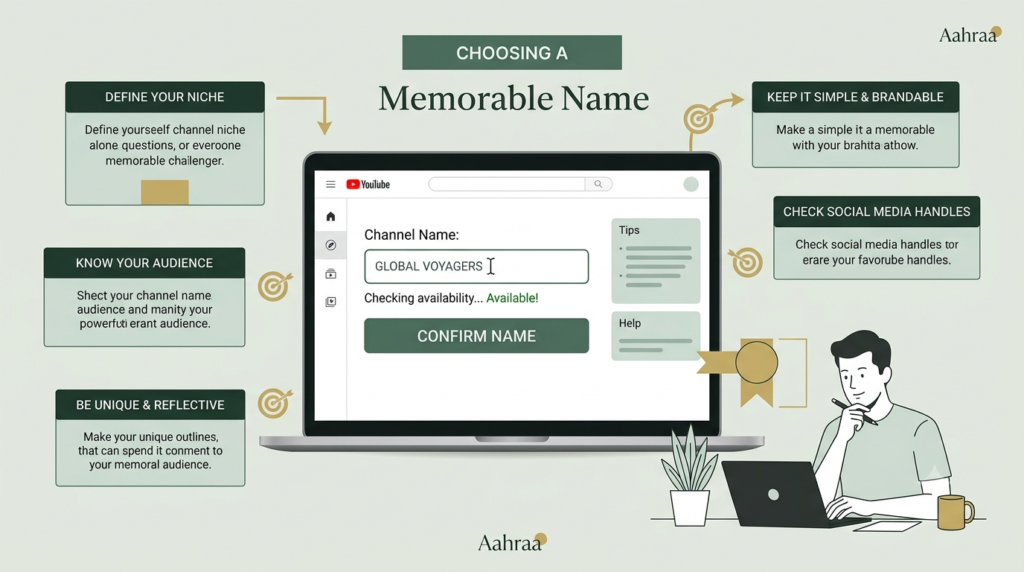
3. Choose Your Handle(name), Profile Picture and Banner
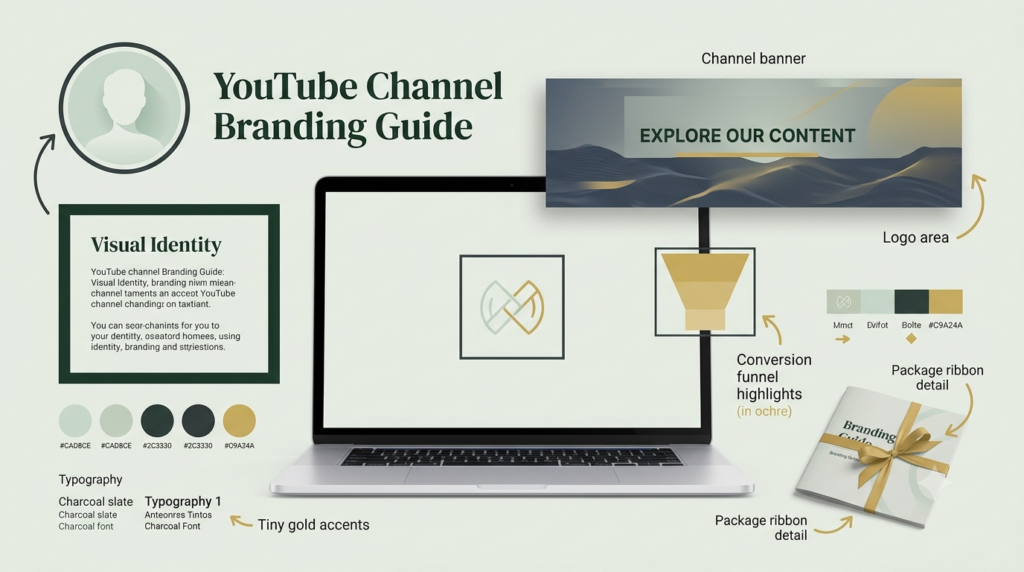
This is where YouTube channel branding begins.Your channel name should be simple enough for people to remember and connected to your overall topic or brand.
Your YouTube handle is different from your channel name. It begins with @ and acts as a unique identifier for your channel. Handles can also be used to promote your channel outside YouTube.
Good channel-name practices
Choose a name that is:
- Easy to spell
- Easy to pronounce
- Relevant to your niche
- Consistent with your website or social profiles
- Suitable for long-term content
Avoid filling the channel name with multiple keywords. A recognizable brand is generally more useful than an awkward keyword-stuffed name.
A YouTube handle starts with @ and is a unique identifier for your channel. YouTube says handles can be used in comments, mentions, live chat and Shorts, and they can also be promoted outside YouTube.
Choose a handle that closely matches your channel name whenever possible.
Profile picture
Use:
- A clear face for a personal creator
- A simple logo for a business
- Good contrast
- A recognizable design
Channel banner
Your banner should quickly communicate:
What you do + who you help + what viewers can expect
YouTube recommends a banner of at least 2560 × 1440 pixels for good display across devices.
4. Complete Your Channel Profile
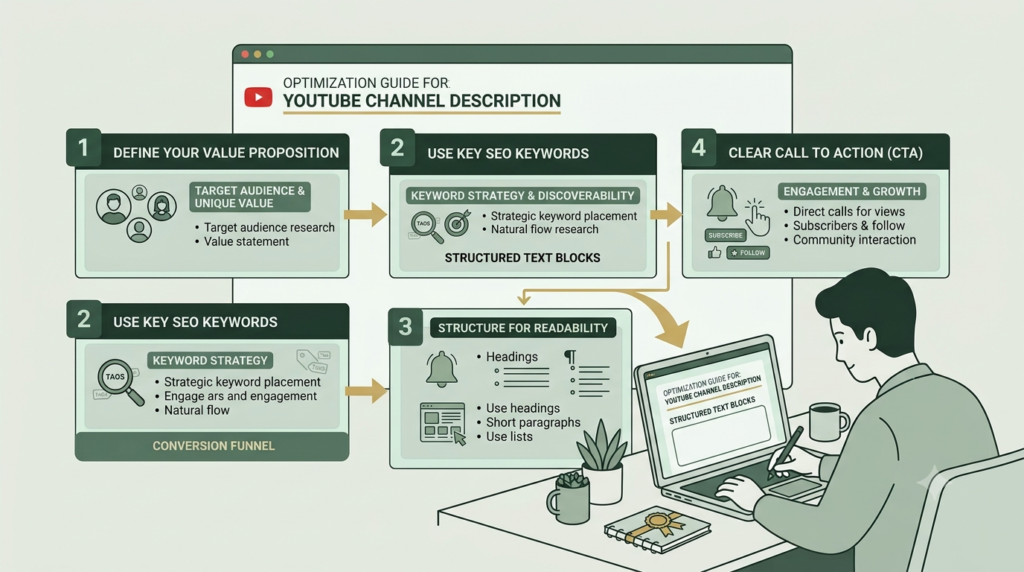
Now add the information that tells visitors what your channel is about.
YouTube Studio lets creators manage the channel name, handle, description and links through the channel customization area.
Write a useful channel description
A simple structure is:
Who you help → What you teach → Main topics → Reason to subscribe → Posting information
For example: Helping beginners understand YouTube SEO, content creation and channel growth through simple, practical tutorials.
Don’t fill the description with repeated keywords. Write for humans first.
Add relevant links
Depending on your channel, you can link to:
- Website
- Blog
- Business page
- Relevant resources
5. Optimize Your Channel Settings
This is an important part of YouTube channel optimization.
Go to YouTube Studio → Settings → Channel.
You can manage channel settings such as country/region, keywords and audience settings. YouTube’s current help documentation confirms that channel keywords can be added in the channel settings.
Add relevant channel keywords
Use closely related phrases rather than dozens of unrelated terms.
For example, a YouTube SEO channel might use:
- YouTube SEO
- YouTube keyword research
- YouTube optimization
- YouTube marketing
- YouTube tutorials
Keep them relevant to your actual content.
Set the audience correctly
YouTube also provides audience settings for identifying whether content is made for kids. Choose the setting that accurately reflects your content rather than selecting an option simply for SEO purposes
6. Customize Your Channel Homepage
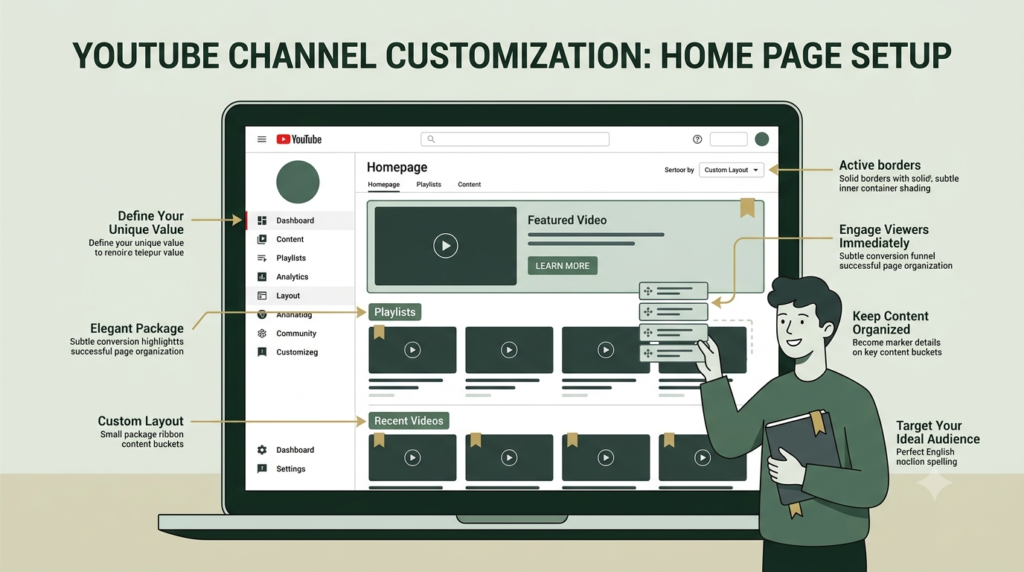
Your homepage should guide visitors toward your most useful content.
YouTube currently allows creators to organize the Home tab with elements such as a channel trailer, featured video and content sections.
Consider creating sections such as:
- Start Here
- Beginner Tutorials
- YouTube SEO
- YouTube Shorts
- Popular Videos
- Latest Videos
Add a channel trailer
A short trailer can introduce new visitors to:
- Who you are
- What your channel teaches
- Who should subscribe
- What they can watch next
Think of the homepage as your YouTube storefront.
7. Verify Your Channel and Prepare for Publishing
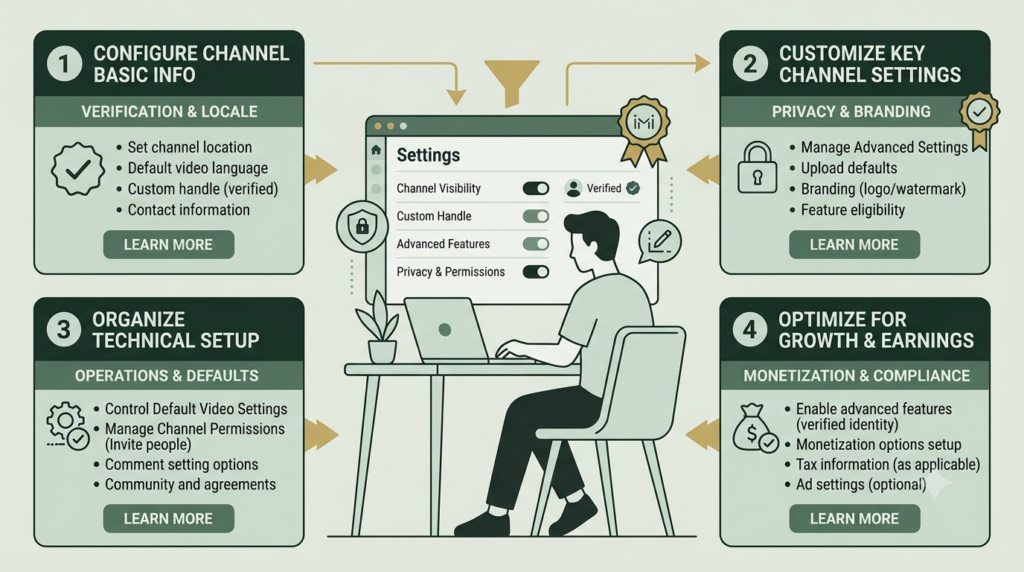
Before publishing seriously, check your available features.
YouTube phone verification can provide access to features including custom thumbnails, live streaming and videos longer than 15 minutes.
You can also check feature eligibility inside YouTube Studio.
Final setup checklist
| Element | What to check |
|---|---|
| Channel name | Clear and memorable |
| Handle | Relevant and recognizable |
| Profile picture | Clear and consistent |
| Banner | Correct size and message |
| Description | Audience-focused |
| Keywords | Relevant to channel topic |
| Links | Working and useful |
| Homepage | Organized sections |
| Trailer | Clear introduction |
| Verification | Completed where appropriate |
| Playlists | Organized by topic |
| Branding | Consistent across platforms |
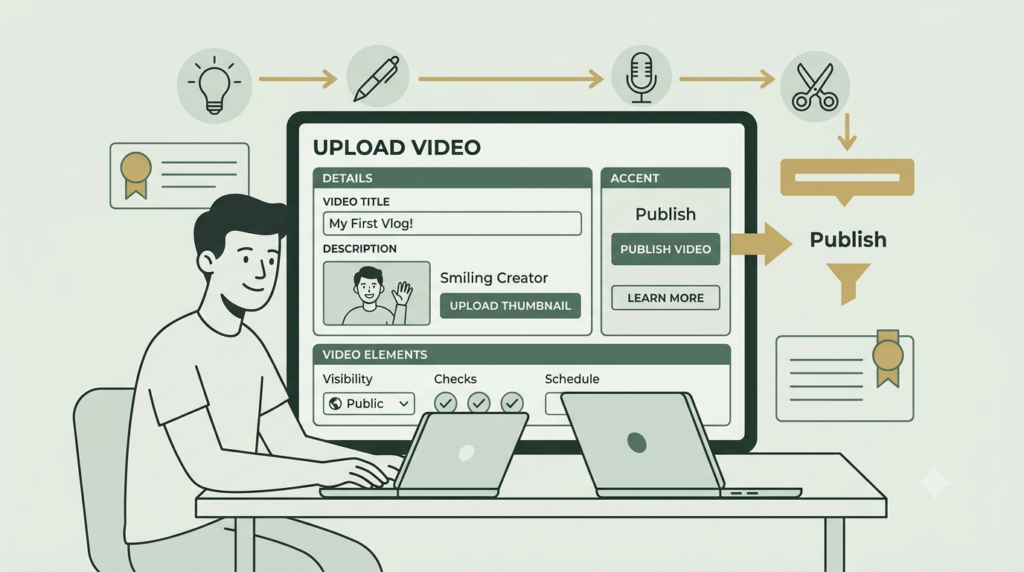
How to Optimize Your YouTube Channel Setup to 100%
Use this final checklist:
☐ Clear channel name
☐ Relevant YouTube handle
☐ Professional profile picture
☐ Correctly sized banner
☐ Consistent brand colors
☐ Clear channel description
☐ Relevant keywords used naturally
☐ Website and social links added
☐ Contact information checked
☐ Home tab organized
☐ Channel trailer or featured video added
☐ Useful playlists displayed
☐ Channel reviewed on mobile and desktop
Remember that “100% optimized” does not mean adding keywords everywhere. It means making the channel clear, useful, technically complete, visually consistent, and easy to navigate.
Common YouTube Channel Setup for Beginners Mistakes
Avoid these beginner mistakes:
- Choosing a confusing channel name
- Changing the niche repeatedly
- Using a low-quality profile image
- Putting important banner text outside the safe area
- Writing a keyword-stuffed description
- Leaving the homepage completely empty
- Adding too many irrelevant links
- Ignoring mobile appearance
- Publishing videos without a clear channel direction
A clean setup gives your future content a stronger foundation.
Why YouTube channel setup is the backbone of your YouTube entity
Think of your channel as the central entity connecting your entire YouTube presence.
Your:
Channel name → Handle → Description → Branding → Videos → Playlists → Topics → Website → Social profiles
all work together to establish a consistent digital identity.
That consistency helps humans understand your brand and gives search systems clearer contextual information about what your channel represents. However, channel setup alone does not guarantee rankings; content quality, viewer satisfaction, relevance and ongoing activity also matter.
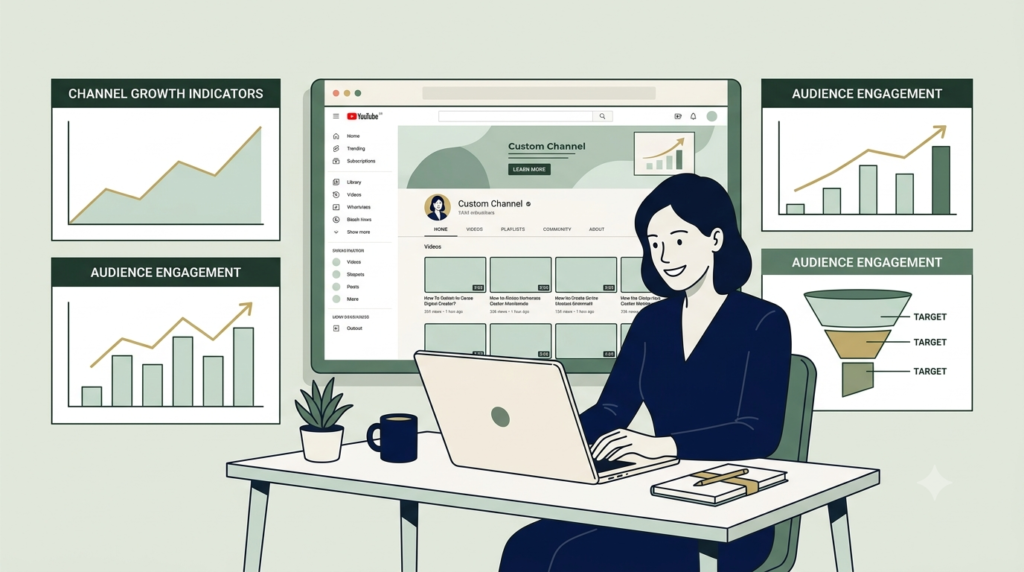
FAQ
1. How do a YouTube channel setup?
Sign in to YouTube with your Google Account, open your account settings, select Add or manage channel(s) and choose Create a channel. Add your channel name, profile picture and handle.
2. What should I put in my YouTube channel setup description?
Explain who your channel helps, what topics you cover and what viewers can expect. Keep it natural and useful rather than filling it with repeated keywords.
3. What size should a YouTube banner be?
YouTube recommends 2560 × 1440 pixels for channel banner artwork. Keep important text and branding positioned so it remains visible across devices.
4. Do I need to verify my YouTube channel?
Verification is useful because phone verification unlocks features such as custom thumbnails, live streaming and longer video uploads.
5. What is YouTube channel optimization?
It means improving your channel’s name, handle, description, branding, keywords, homepage, playlists and overall structure so visitors can quickly understand the channel.
6. Is a YouTube handle important?
Yes. A handle provides a unique channel identifier beginning with @ and can make your channel easier to identify and share.
7. How often should I change my channel branding?
Change it when your brand, audience, or content direction genuinely changes. Avoid frequent unnecessary redesigns because consistency helps people recognize your channel.
Conclusion
A successful YouTube channel setup starts with clarity. Choose a relevant name and handle, create recognizable branding, write a useful description, configure your channel settings, add important links, and organize your homepage.
Once the foundation is ready, you can focus on creating searchable and useful videos. Your channel setup supports your overall YouTube SEO strategy, while individual videos need their own optimization for keywords, titles, thumbnails, descriptions, and other elements.
Start simple, keep your branding consistent, and improve your channel as your content and audience grow.